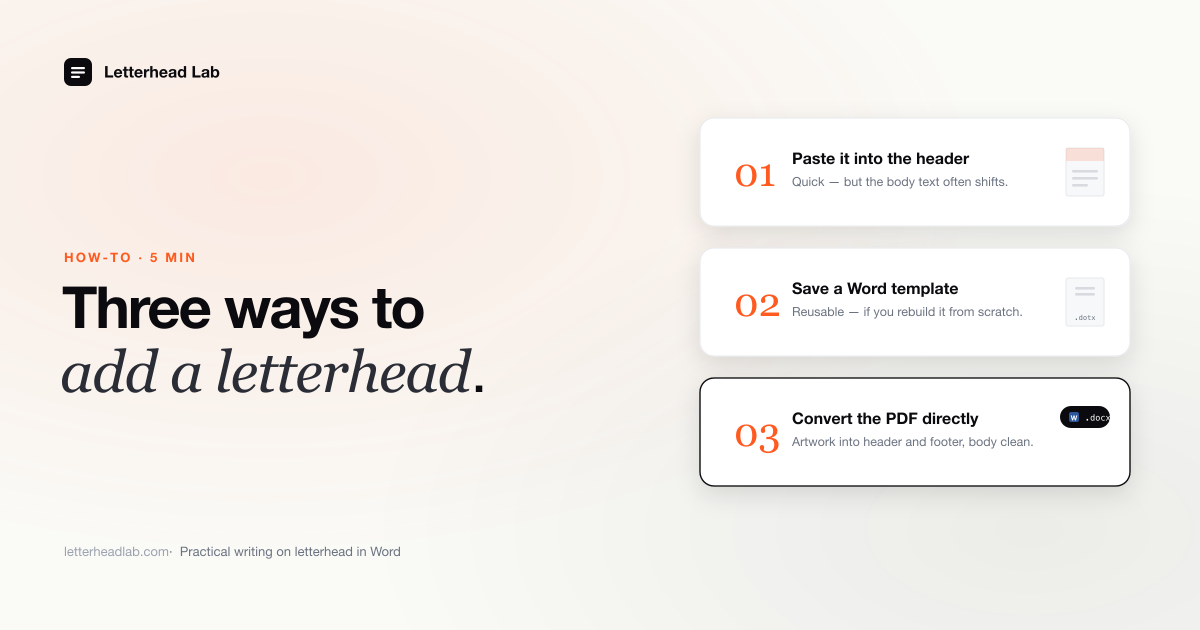
"Add a letterhead to Word" sounds like one task, but it splits into three depending on what you start with: a flat image, nothing at all, or a designed PDF. Each starting point has a method that fits and two that fight you. Here is all three, and an honest read on which to pick.
Method 1 — Insert a letterhead image into the header
This is the right method when you already hold a flat image of the letterhead — a PNG or JPG that a designer exported, or one you saved yourself. You are placing a finished picture, not arranging type. The whole job is getting it into Word's header, not the body.
The header is the layer that repeats on every page and stays clear of the text you type. Put the letterhead in the body and it shifts the moment you press Enter; put it in the header and it stays anchored.
- Insert → Header → Blank to open the header area.
- With the cursor in the header, Insert → Pictures → This Device, and choose your letterhead image.
- Click the image, open Layout Options (or right-click → Wrap Text), and set it to Behind Text, anchored to the page. Your letter text then sits on top of the artwork instead of being pushed around by it.
- Size it to the page — full page width if the art bleeds edge to edge, text-area width if it sits inside the margins. Drag from a corner handle so the proportions hold.
- Set the body's top margin so the first line clears the artwork. A 1.5" header wants a top margin of at least 1.75".
- Right-click the image → Edit Alt Text and describe it briefly — "Acme LLP letterhead" is enough. Alt text travels with the file and keeps the document accessible if it is ever sent to a court system.
The catch: this only works cleanly when you genuinely have a flat image. The full step-by-step, including extracting artwork when all you have is a PDF, is in our guide to inserting a PDF into a Word header.
When this fits: you have a PNG or JPG of the finished letterhead and want it in one document.
Method 2 — Start from a Word template
This method fits the person with no designed letterhead who is not going to commission one. You open a pre-structured starting point — header height, margins, and footer already set — and fill in your name, address, and logo by hand.
Word ships letterhead templates in File → New, and more sit in the online gallery. They are arranged, not designed: Word cannot kern type, set tracking, or reproduce foil or engraving. For internal memos and low-stakes mail that trade is reasonable. For correspondence carrying brand weight, it is not.
A blank template gallery still leaves you arranging everything yourself. A pre-built skeleton with the structure already correct is faster. That is what the letterhead-to-Word template tool gives you — the header height, margins, and footer built right, so you only drop in your details. Save the result as a .dotx template if a team will draft from it, so nobody saves a letter over the master.
When this fits: you have no design and no PDF, and the letterhead is for internal or low-stakes use.
Method 3 — Convert a designed PDF letterhead
This is the method for the person who already owns a real, designed letterhead — a PDF from a designer or a stationer — and wants that exact design working in Word. You do not want to rebuild it; you want the file you already paid for to function as a letter page.
The instinct is to run the PDF through a generic PDF-to-Word converter. Do not. A generic converter assumes you want every element editable, so it picks the design apart — the logo is rebuilt in a font Word guesses at, the address block splinters into overlapping frames, and any foil detail is lost.
A correct conversion does the opposite. The artwork goes into Word's header and footer untouched, at full resolution, and only the body is left editable — the same model as Method 1, done automatically. You upload the PDF to Letterhead Lab's PDF-to-Word converter, set the crop in a live preview, and download the Word file in about a minute. Your PDF stays in your browser the whole time — the conversion runs client-side, so a file carrying a confidential client name is never uploaded. Pricing is concrete: Single is $19 per page, and the Multi-page bundle is $49 flat for up to 10 pages. When this fits: you have a finished designed PDF and need that exact design, pixel-for-pixel, in Word. To keep one reusable file for every future letter, convert the PDF letterhead to a Word template instead of a one-off document.
Adding a letterhead to a letter you've already written
Every method above assumes a fresh page. Often you have the opposite: a finished letter — address block, body, signature — and the letterhead has to go on top without breaking it. The fix is the order you do things in. Widening the top margin reflows the whole body, so set the geometry first and place the artwork second.
- Margins first. Layout → Margins → Custom Margins. Raise the top margin to the artwork height plus breathing room (1.75" for a 1.5" header) and set "Header from edge" to about 0.5". Click OK and let the body reflow.
- Fix the reflow before anything else. Scroll the whole letter. Page breaks move, a table can spill onto page two, the signature block can strand mid-page. Repair those now, while the header is still empty.
- Then open the header (double-click the top margin) and insert the artwork there — never inline in the body, where every edit above it pushes it down.
- Pin it. Right-click → Size and Position → Position: set it relative to the Page, check Lock anchor and uncheck Move object with text.
- Decide first page only or every page. Tick Different First Page in the header toolbar, put the full letterhead in the first-page header and a minimal one (or nothing) on the rest. If the letter already had a header, check both versions after toggling — see letterhead on the first page only.
- Print-preview at actual size and confirm no body line sits under the artwork and nothing clips at the paper edge.
Doing this for one letter is fine. Doing it every week is the sign you need a template: save the finished file as a .dotx once — or convert the PDF letterhead to a Word template — so every new letter starts with the header already in place.
Adding a letterhead in Word for Mac
The steps are the same on a Mac; the menu names and a few defaults differ, and those differences are what make a Mac-built letterhead shift when a Windows colleague opens it.
- Insert the image: double-click the top margin, then Insert → Pictures → Picture from File. Dragging an image onto the page drops it in the body, not the header.
- Anchor to the page, not the paragraph: Format Picture → Layout & Properties (or Wrap Text → More Layout Options) → Position, with both positions measured from the Page. Turn Move with text off and Lock anchor on. A logo left on "move with text" migrates when Windows recalculates line spacing.
- Set the header distance explicitly under Layout → Margins → Custom Margins → Header, rather than letting Word size it to the artwork; Mac and Windows round auto-sized headers differently.
- Watch the fonts. A font installed only on your Mac is silently substituted on Windows and line breaks change. Keep the letterhead text inside the artwork, or stick to fonts both machines have.
- Save the master as a template: File → Save as Template (
.dotx) so it appears under File → New from Template.
Before you send the file to anyone, open it once on a Windows machine and check the logo position and the gap above the first line of body text. If something moved, the anchor in the second bullet is the usual culprit.
Common mistakes that shift the body text
Whichever method you use, the same handful of errors cause most broken letterheads:
- Typing the artwork into the body. A logo pasted into the body is treated like text, so it moves every time a line is added. Double-click the top of the page to open the header first.
- A top margin smaller than the header art. Body text then overlaps the letterhead. Raise the top margin under Layout → Margins → Custom Margins, and test by typing enough to spill onto page two.
- Images set to In Line With Text. Inline images reflow. Set Wrap Text to Behind Text or In Front of Text so the artwork stays anchored.
- One flat screenshot of the whole page. Split it: top artwork in the header, address line or rule in the footer.
- Skipping Different First Page. If page two should carry a reduced header or none, turn on Different First Page and set each version separately — a multi-page conversion builds that continuation header for you.
- Saving the master as a .docx a whole team edits. Save it as a Word Template (
.dotx) in the Custom Office Templates folder so it appears under File → New and every open is a fresh copy.
Which method to use
Start from what you have in hand. With a flat image, insert it into the header — Method 1. With nothing designed, start from a template — Method 2. With a designed PDF, convert it — Method 3.
Do not rebuild a designed PDF from scratch and do not run it through a generic converter — both produce something worse than what you started with. If you are starting from a blank page instead, the step-by-step guide on how to make a letterhead in Word walks through every path, with a full decision tree. Most law firms we work with land on Method 3, because they already paid for the design and the job is to convert it, not redo it.
Frequently asked questions
- How do I add a letterhead to a Word document?
It depends on what you have. With a flat image, insert it into Word's header set to Behind Text. With no design, start from a template. With a designed PDF, convert it so the artwork is preserved in the header and footer and only the body stays editable.
- Why shouldn't I use a generic PDF-to-Word converter for a letterhead?
A generic converter tries to make every element editable, so it rebuilds the logo in the wrong font and splinters the address into overlapping text boxes. A letterhead conversion keeps the artwork as artwork — placed in the header and footer untouched — and leaves only the body editable.
- Will the letterhead repeat on page two?
Only if it sits in Word's header rather than the body. Anything in the header repeats on every page automatically; anything pasted into the body does not, and shifts when the text reflows.
- How do I add a letterhead to an existing Word document without moving the text?
Set the margins first, fix any page breaks the reflow moves, and only then insert the artwork into the header with Move object with text turned off. Adding the image before changing the margins is what makes the letter jump around.
- How do I add a letterhead in Word on a Mac?
Double-click the top margin to open the header, choose Insert → Pictures → Picture from File, then in the picture's Position settings measure from the Page, turn Move with text off and Lock anchor on. Save as a template if you will reuse it, and test-open the file on Windows once.